Showing posts with label windows. Show all posts

Common Windows 10 keyboard shortcuts


Most used keybord shortcuts for windows 10:

  • This is several common keyboard shortcuts:
    • Copy: Ctrl + C

    • Cut: Ctrl + X

    • Paste: Ctrl + V

    • Maximize Window: F11 or Windows logo key  + Up Arrow 

    • Minimize Window: Windows logo key  + Down Arrow
    • Task View: Windows logo key  + Tab

    • Switch between open apps: Windows logo key  + D

    • Shutdown options: Windows logo key  + X

    • Lock your PC: Windows logo key  + L

    • Take a screenshot: Windows logo key  + PrtScn
    • Refresh: F5
    • Close the active item: Alt + F4


Keyboard shortcuts for Excel on Windows


This article describes the keyboard shortcuts, and common hotkey for Excel in Windows.


What is Excel?

How do I use Excel via keyboard?

How to do everything in Excel with keyboard shortcuts?

What are the keyboard shortcuts for Excel on Windows?


Keyboard shortcuts for Excel on Windows : 


Close a workbook         Ctrl+W


Open a workbook Ctrl+O


Go to the Home tab Alt+H


Save a workbook Ctrl+S


Copy Ctrl+C


Paste Ctrl+V


Undo Ctrl+Z


Remove cell contents         Delete


Choose a fill color         Alt+H, H


Cut Ctrl+X


Go to Insert tab         Alt+N


Bold Ctrl+B


Center align cell contents         Alt+H, A, C


Go to Page Layout tab         Alt+P


Go to Data tab         Alt+A


Go to View tab Alt+W


Open context menu         Shift+F10, or Context key


Add borders Alt+H, B


Delete column         Alt+H, D, C


Go to Formula tab         Alt+M


Hide the selected rows         Ctrl+9


Hide the selected columns     Ctrl+0


Keyboard Shortcuts for YouTube in Windows

YouTube icon - Windows 10 icon - Keyboard

In this tutorial we will discover keyboard shortcuts for YouTube, the most popular video platform.

YouTube has many great keyboard shortcuts, the card below Contain most of them.

Keyboard shortcuts card for YouTube


ActionKeyboard shortcuts
Toggle play / Pause the videok or Spacebar
Go forward 10 secondsRight arrow
Go forward 20 secondsl
Go back 10 secondsLeft arrow
Go back 20 secondsj
Restart video0 (zero)
Go to Full Screen modef
Exit Full Screen modeEscape
Go to beginning of videoHome
Go to end of videoEnd
Increase speedShift + > OR  Shift + .
Decrease speedShift + < OR  Shift + ,
Mute / Unmute the sound in videom
Move forward 1 frame when video is paused. (dot / point)
Move backward 1 frame when video is paused, (comma)
Turn captions on / offC
Move to the next video in a playlistShift + N
Move to the previous video in a playlistShift + P
Cycle through options for caption background colorb
Increase volume 5%Up arrow
Decrease volume 5%Down arrow
Skip to a particular section of the video (for example, 2 goes 20% of the video, and 5 goes to the video midpoint)Numbers 1-9

Keyboard shortcuts for Microsoft Edge in Windows

Microsoft Edge-windows 10 icon image
Microsoft Edge

Microsoft Edge

Microsoft Edge by Microsoft Software is the official Internet browser for Windows, which is preinstalled in it, as the successor to Internet Explorer. It is one of the most popular web browsers.

New Microsoft Edge

Microsoft has released the new version of Microsoft Edge, which is the latest version that comes as a comprehensive development of the previous version.

It provides many features as well as an impressive and easy-to-use user interface with keyboard shortcuts for the best browsing experience, optimal and efficient use.

Keyboard shortcuts for Microsoft Edge in Windows 10


We will discover most of the features of the new Edge by reviewing all the keyboard shortcuts 


Action Keyboard shortcuts
Save your current webpage as a favoriteCtrl + D
Open a search query in the address barCtrl + E
Find on pageCtrl + F
Jump to the next match to your Find Bar searchCtrl + G
Open History in a new tab (web UI)Ctrl + H
Open Downloads in a new tab (web UI)Ctrl + J
Select the URL in the address bar to editCtrl + L
Mute current tab (toggle)Ctrl + M
Open a new windowCtrl + N
Open a file from your computer in EdgeCtrl + O
Print the current pageCtrl + P
Reload the current pageCtrl + R
Save the current pageCtrl + S
Show or hide the favorites barCtrl + Shift + B
Save all open tabs as favorites in a new folderCtrl + Shift + D
Jump to the previous match to your Find Bar searchCtrl + Shift + G
Open Developer ToolsCtrl + Shift + I
Paste and search or Paste and go, if it's a URL selectedCtrl + Shift + L
Sign in as a different user or browse as a GuestCtrl + Shift + M
Open a new InPrivate windowCtrl + Shift + N
Open Favorites managementCtrl + Shift + O
Print using the system dialogCtrl + Shift + P
Reload the current page, ignoring cached contentCtrl + Shift + R
Reopen the last closed tab, and switch to itCtrl + Shift + T
Start or stop Read AloudCtrl + Shift + U
Paste without formattingCtrl + Shift + V
Close the current windowCtrl + Shift + W
Open a new tab and switch to itCtrl + T
View sourceCtrl + U
Close the current tabCtrl + W
Reset zoom levelCtrl + 0 (zero)
Switch to a specific tabCtrl + 1, 2, ... 8
Switch to the last tabCtrl + 9
Add www. to the beginning and .com to the end of text typed in the address barCtrl + Enter
Open clear browsing data optionsCtrl + Shift + Delete
Switch to the next tabCtrl + Tab
Switch to the previous tabCtrl + Shift + Tab
Zoom inCtrl + Plus (+)
Zoom outCtrl + Minus (-)


Keyboard shortcut to refresh the active window in windows 10

refresh window image


What is the shortcut key for refresh the active window in Windows 10?

How to refresh the active window in windows 10 using keyboard shortcuts?


Keyboard shortcut to refresh the active window in windows 10


  • Refresh active window using : F5 in the keyboard.

  • Keyboard shortcut to refresh the active window in windows 10.
  • Press F5 on the keyboard.
  • the 'F5' key image
  • The active window will be refreshed.

Windows 10 rename item keyboard shortcut

Rename item windows 10


What is the hotkey for rename the selected item in windows 10?

How to rename the selected item in Windows 10 with keyboard shortcut?


Windows 10 Rename the selected item keyboard shortcut


  • Rename selected item : F2 in the keyboard

  • Keyboard shortcut to rename item selected in windows 10.
  • Press F2 in the keyboard.
  • the 'F2' key image
  • The selected item name will be renamed,  Edit the name and save it.

Windows 10 close the active item keyboard shortcut

White keyboard
Keyboard hotkey

How to exit the active app  in Windows 10 with hotkey?

What is the keyboard shortcuts for close the active item in windows 10?


Windows 10 close the active item keyboard shortcut


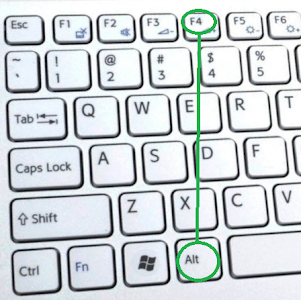
  • Close the active item or exit from app : Alt + F4 in the keyboard

  • Keyboard shortcut to close the active item or exit from app in windows 10.
  • Press Alt + F4 in the keyboard.
  •  
    the 'Alt' key image 
    +  the 'F4' key image
  • The opened item will be closed or active app will be exited.

Windows 10 switch between open apps

White keyboard
Keyboard shortcuts

What is the keyboard shortcuts for switch between open apps in windows 10?

How to switch between open apps in Windows 10 with keyboard shortcuts?


Windows 10 switch between open apps keyboard shortcut


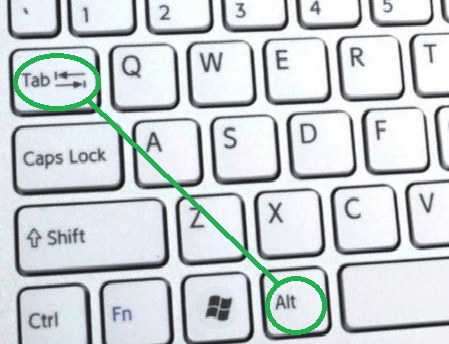
  • Switch between open apps : Alt + Tab in the keyboard

  • Keyboard shortcuts to switch between the open apps in windows 10.
  • Press Alt + Tab in the keyboard.
  • The 'Alt' key image +  the 'Tab' key image
  • It will switch to another app open in Windows

Windows 10 undo action keyboard shortcut

Desktop keyboard
Keyboard keys

What is the hotkey for undo an action in windows 10?

How to undo an action in Windows 10 with keyboard shortcut?


Windows 10 undo an action keyboard shortcut


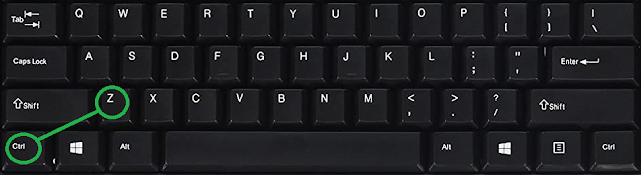
  • Undo an action : Ctrl + Z in the keyboard

  • Keyboard shortcut to undo an action in windows 10.
  • Press Ctrl + Z in the keyboard.
  •   the 'Ctrl' key image     +  The 'Z' key image
  • The action will be undone and returned with one action

Keyboard shortcuts for cut the item in Windows 10

Black desktop keyboard
Desktop keyboard

What is the keyboard shortcut for cut the selected item in windows 10?

How to cut the selected item in Windows 10 with keyboard shortcut?


Keyboard shortcut for cut the selected item in windows 10


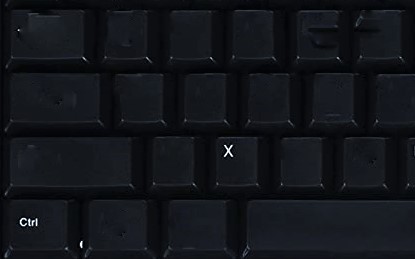
  • Cut selected item : Ctrl + X in the keyboard

  • Keyboard shortcut to cut item selected in windows 10.
  • Press Ctrl + X in the keyboard.
  •   the 'Ctrl' key image     +  The 'X' key image
  • The selected item will be cut and saved to the clipboard.

Windows 10 select item keyboard shortcut


Rotate keyboard image
Rotate keyboard

What is the keyboard shortcut for select item in windows 10?

How to select an element or components in Windows 10 with keyboard shortcut?

Windows 10 select item keyboard shortcut


  • Select item : Ctrl + A in the keyboard

  • Keyboard shortcut to select all items in a document or window in windows 10.
  • Press Ctrl + A in the keyboard.
  •   the 'Ctrl' key image     +  
  • The selected item will be identified and marked.

Windows 10 Paste item keyboard shortcut

Grey keyboard
Grey keyboard


What is the keyboard shortcut for paste the copied item in windows 10?

Windows 10 Paste the copied item keyboard shortcut


  • Paste copied item : Ctrl + V in the keyboard

  • Keyboard shortcut to paste The copied item in windows 10.
  • Press Ctrl + V in the keyboard.
  •   the 'Ctrl' key image     +  

  • The item will be pasted from the clipboard at the exact location that you choose.

Windows 10 copy item keyboard shortcut

Keyboard keys
Keyboard keys

What is the keyboard shortcut for copy the selected item in windows 10?

How to copy the selected item in Windows 10 with keyboard shortcut?


Windows 10 Copy the selected item keyboard shortcut


  • Copy selected item : Ctrl + C in the keyboard

  • Keyboard shortcut to copy item selected in windows 10.
  • Press Ctrl + C in the keyboard.
  •   the 'Ctrl' key image     +  the 'C' key image
  • Selected item will be copied to clipboard.